
As you add new folder to the root of the site those new folders will be added horizontally. Once a line if filled up the new navigation folds will be place in a new line.
To test the flexibility of the Top Navigation menu, you can shrink your browser window manually to see what happens to the menu as it has to appear in a smaller and smaller window.
Modifying your Navigation Menu
The top navigation menu will display dropdown menus for each folder at the top level of your site (in other words, each folder that's in the Home folder). So to control what shows up on the navigation menu, you have two options: you can hide specific items, or you can control what folders are added to the Home folder. The following are some common folders that can appear at the top level of your site:
- Home
- Kids & Teens
- eShelf & Research
- News & Events
- About Us
- Español
- Staff Area
When a folder is place inside another folder this creates what is called a Sub-folder. When a sub-folder is added to a root folder this nested folder creates a drop-down the arrow is indicating there are folders in that root folder can be accessed by clicking on the down arrow
Clicking the arrow will open up the drop-down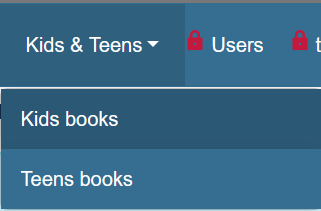
Was this article helpful?
That’s Great!
Thank you for your feedback
Sorry! We couldn't be helpful
Thank you for your feedback
Feedback sent
We appreciate your effort and will try to fix the article